View statements & other documents.

Manage alerts & notifications.

Stay Informed and Organized.

Choose the alerts you want and how you receive them. View statements, notices and tax forms in one place. Stay on top of account activity and keep important records easy to find. Open any topic for details.

Manage Alerts & Notifications

Alerts help you stay on top of account activity. Some alerts, like security notifications, are always on. Others, like balance or deposit alerts, are optional. You choose what you receive and how it’s delivered.

Use the Alerts tool to set up, customize and manage notifications.

Tip: Text alerts are fast and reliable when you’re on the go. Use them to catch fraud, confirm deposits or track spending in real time.

  1. Log in to Digital Banking.
    • From a Browser: Click Manage Accounts, then select Alerts.
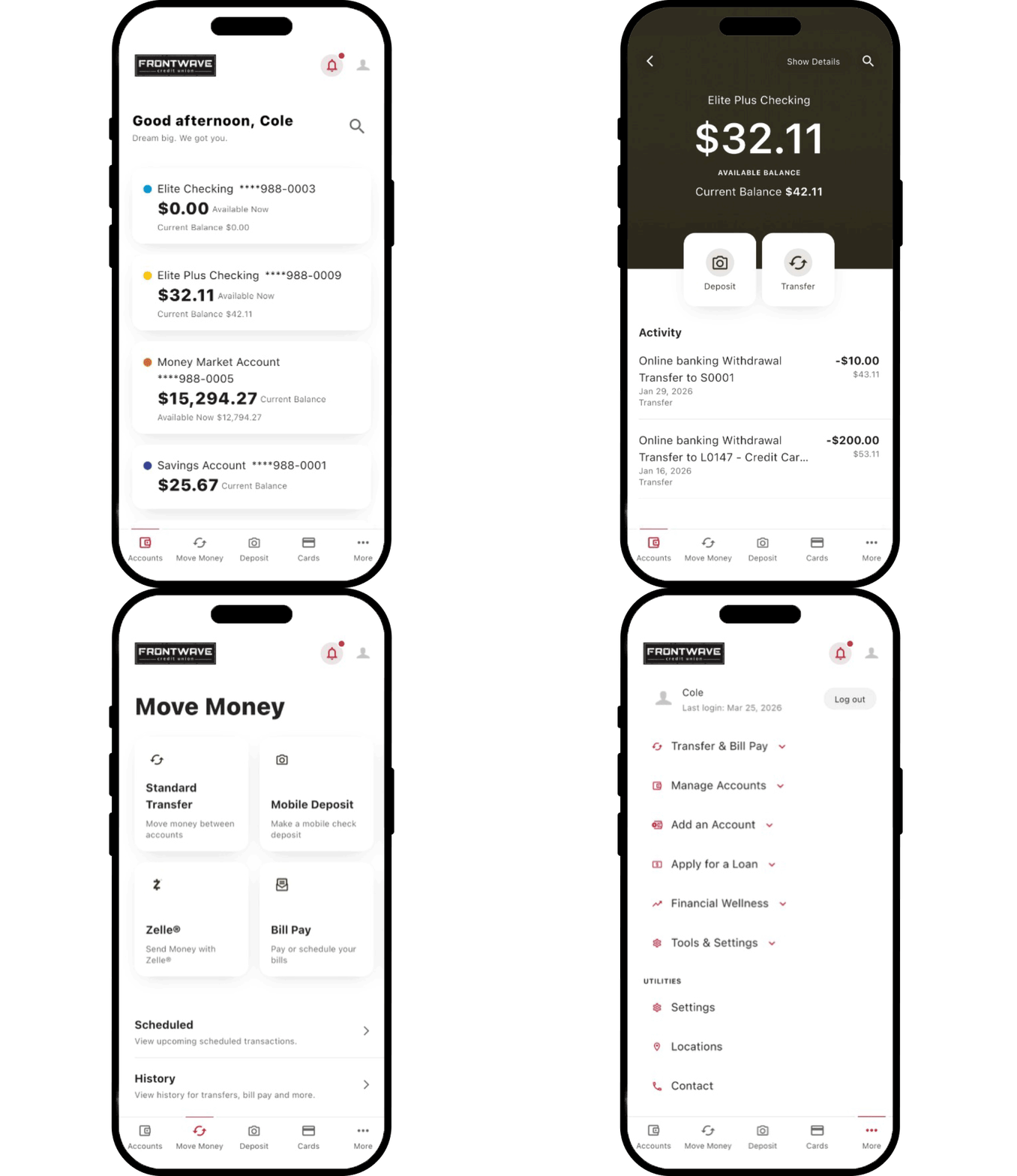
    • From the Mobile App: Tap More, then Manage Accounts, then Alerts.
  2. View the list of available alerts and select an alert type.
  3. Choose your account and set any required conditions.
  4. Turn the alert on using the toggle.
  5. Choose how to receive the alert. You can select more than one.
  6. Click Save. Repeat for additional alerts.

Tip: First time using text alerts? Turn on SMS in Settings before selecting Text as a delivery option.

IMPORTANT: Some alerts need extra details.

  • Balance alerts require a low or high amount.
  • Balance summaries require a day and time.
  • Debit card alerts require a minimum dollar amount.
  • Transaction alerts require a rule and a condition.

  1. Log in to Digital Banking.
    • From a Browser: Click Manage Accounts, then select Alerts.
    • From the Mobile App: Tap More, then Manage Accounts, then Alerts.
  2. Select the alert you want to update.
  3. Use the toggles to turn the notification method on or off.
  4. Click Save.

IMPORTANT: General alerts must have at least one delivery method active.

From a Browser:

  1. Click Tools & Settings, then Settings.
  2. On the Contact tab, click the pencil icon next to your mobile number.
  3. Check the box to allow SMS messages.
  4. Tap Send Code via Text to confirm the number.
  5. Select your preferred verification method.
  6. Enter the verification code and tap Confirm.
  7. Tap OK once confirmed.

From the Mobile App:

  1. Tap More, then Settings, then Contact.
  2. Under Phone Numbers, select the number you want to enable.
  3. Toggle Enable SMS text messages.
  4. Tap Send Code via Text to confirm the number.
  5. Select your preferred verification method.
  6. Enter the verification code and tap Confirm.
  7. Tap OK once confirmed.

Tip: Once SMS is enabled, return to Alerts to add Text as a delivery method.

  1. Tap More, then Settings, then Push Notifications.
  2. Toggle Allow Push Notifications to turn on.
  3. Select Allow to confirm.

View Statements & Other Documents

Access statements, notices and tax forms in one place. View current and past documents without paper or clutter. eDocuments are free. Paper statements have a $2 monthly fee.

Tip: Going paperless helps reduce identity theft risk and keeps records easy to find when you need them.

From a Browser:

  1. Click Manage Accounts, then select eStatements/Notices.
  2. On the Overview tab, click Subscribe.
  3. Read the disclosure, check I Agree, then click Subscribe again to confirm.

From the Mobile App:

  1. Click More, then Manage Accounts, then select eStatements/Notices.
  2. On the Overview tab, click Subscribe.
  3. Read the disclosure, check I Agree, then click Subscribe again to confirm.

From a Browser:

  1. Click Manage Accounts, then select eStatements/Notices.
  2. Click Statements to view available documents.
  3. Click any document name to open it.
  4. To see older records, check Show Hidden Documents. Documents are available for up to two years.
  5. Click Document List to view another document or Close Window to return to your dashboard.

From the Mobile App:

  1. Click More, then Manage Accounts, then select eStatements/Notices.
  2. Click Statements to view available documents.
  3. Click any document name to open it.
  4. To see older records, check Show Hidden Documents. Documents are available for up to two years.
  5. Click Document List to view another document or Close Window to return to your dashboard.

If you prefer paper statements:

  1. Follow the directions above for enrolling in eStatements.
  2. Then click Unsubscribe.
  3. Read the disclosure, check I Agree, then confirm.

IMPORTANT: eDocuments are free. Paper statements have a $2 monthly fee.

Bank Smarter, Not Harder.

Level Up with Our Mobile App

  • Bank on your schedule wherever you are
  • Deposit checks from anywhere, anytime
  • Pay bills and move money fast
  • See balances and activity instantly